
HS4 Web Control

The first step is to install the Arduino IDE V1.8.9
You do not need to install the IDE on the Homeseer server it can be installed on another computer with a USB port.
Now we need to install the required Libraries Arduino IDE.
1. to download the Libraries.Zip file then extract it.
2. Copy the five extracted individual folders to the libraries folder that is located in the same folder as the Arduino.exe. eg. "C:\Program Files (x86)\Arduino\libraries”.
3. You should now have a file structure something like this.
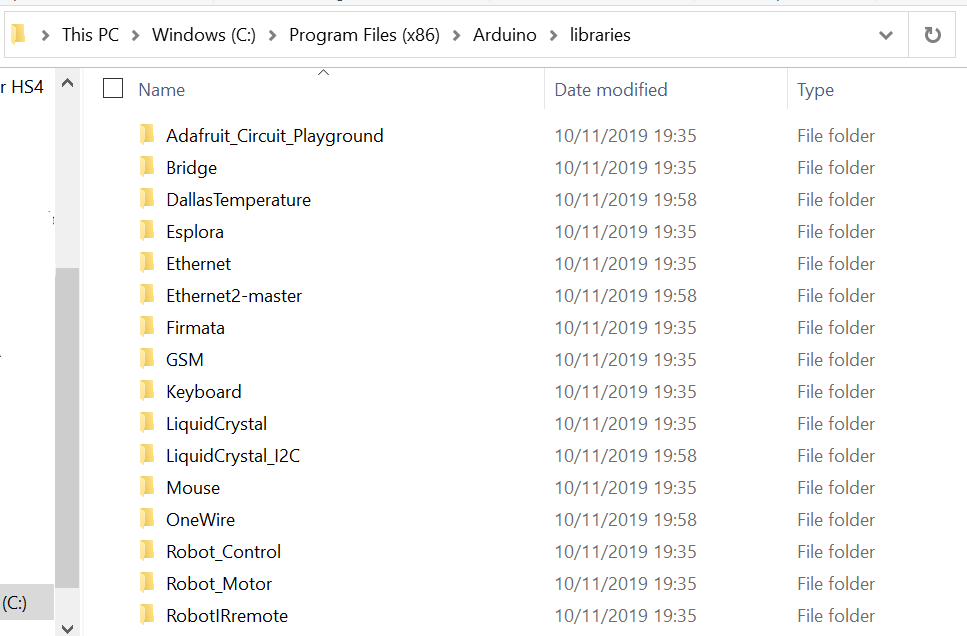
4. If you have the IDE open the please close and open it again to install the libraries.
Now we need to use the Set up the Arduino IDE to your board type and com-port Board.
If you are using a a Nodemcu please click the following button for instructions on setup.
1. Connect your board to the USB port on the computer with the IDE installed.
2. Click Tools then Board: and select your board type. (eg.Arduino Mega)
ESP-01 choose Generic ESP8266 Module.
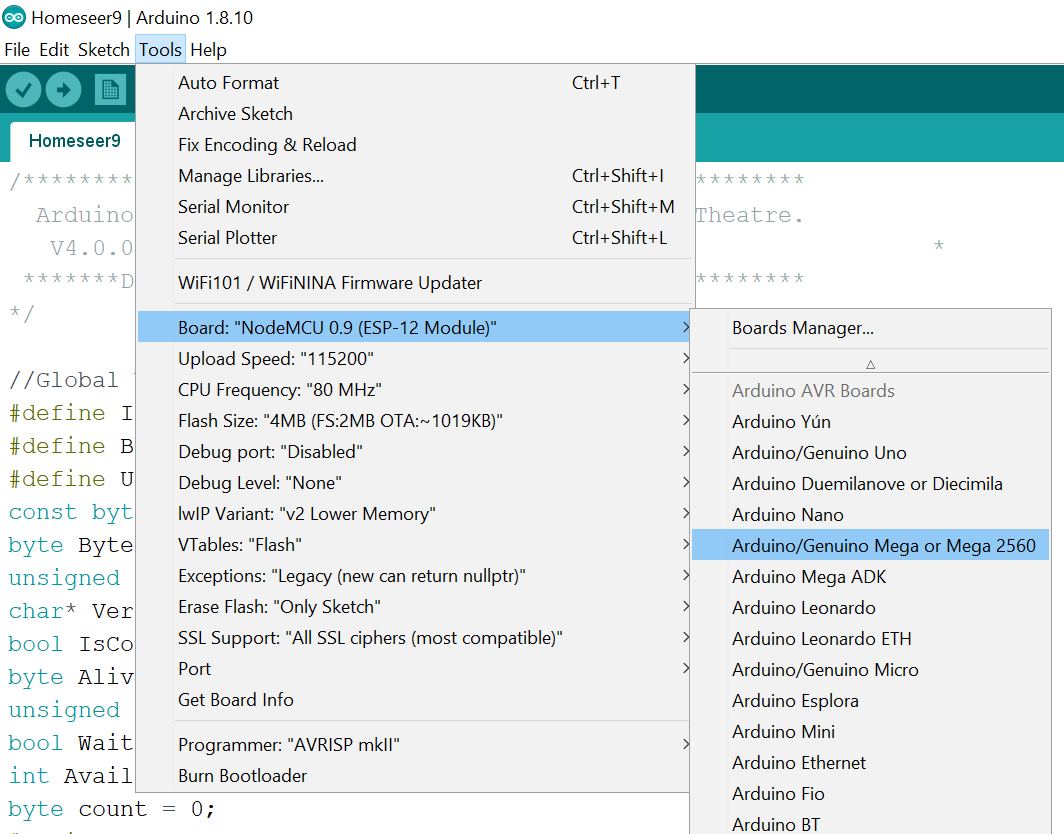
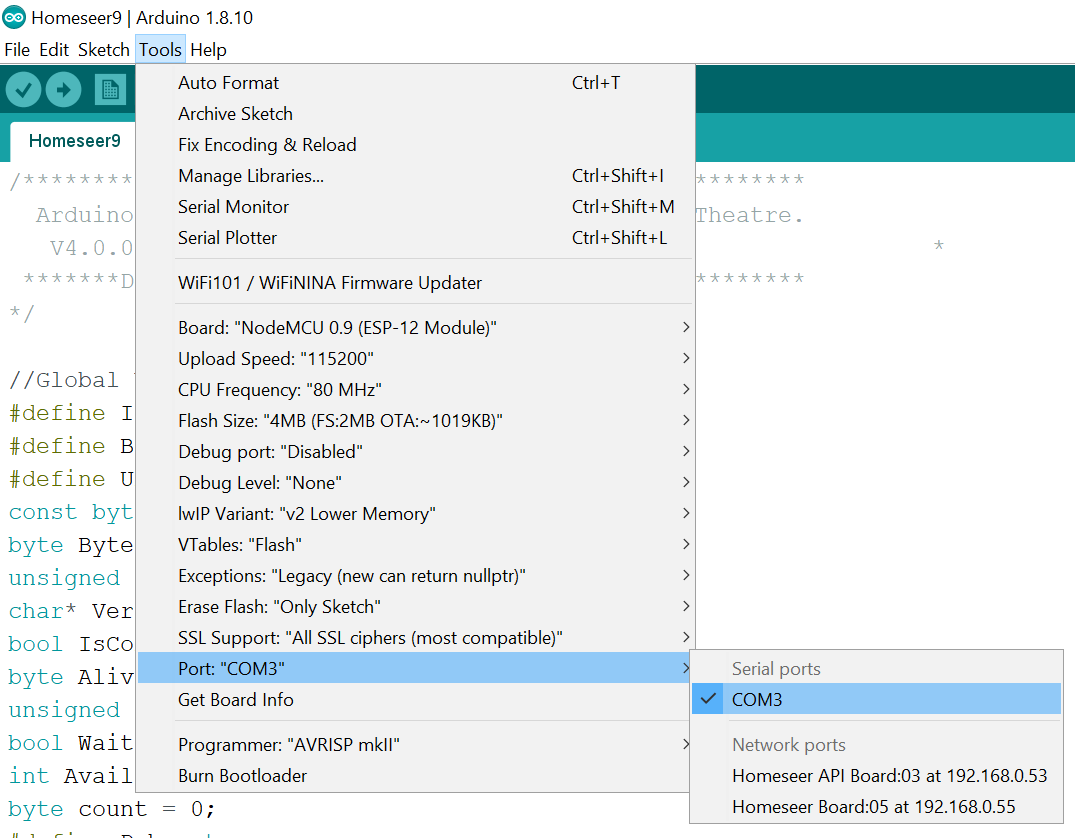
3. Click Tools then Port: and select the port that your board is connected to. (eg.Com3)
Next, we need the sketch that will run on your Arduino. This is the firmware that runs on the board and communicates with HomeSeer. Don't worry the plugin will create this for you so you do not need to code anything.
1. Select the board you would like to upload your sketch to from the list below.
2. Click the Sketch download button to save your sketch.
Now we need to use the Arduino IDE to upload the sketch to the Board.
1. Open the Arduino IDE then click File/Open.
2. Navigate to the sketch you downloaded for your board and open it. (eg.HomeseerBoard1.ino) You may be prompted that the sketch needs to be in a folder. If this happens then click OK and your sketch will be moved into a folder with the same name as your sketch.
3. Click the right facing arrow in a circle located on the top left of the IDE to upload the sketch to the board.
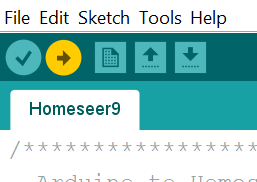
After a sucsessfull upload and if you have auto connect enabled the board will try and connect to HS. If your board does not auto connect click connect below.